CoWorkboard runs on your own web space in ten minutes. After that, a second video shows how your team works with it. Both videos are narrated in German, have chapters and captions, and every step is repeated as text below.
The recordings show version 1.37.3, narrated in German. The host’s menu and FTP program are neutral re-creations; yours may look different, the steps stay the same.
01
Before you start
This is how you install CoWorkboard on your web space. Ten minutes.
You need Apache or LiteSpeed, PHP 8.1 and a database.
Plus your own domain or subdomain with SSL, no subfolder.
Download your package and unzip it.
In the video from 0:00.
02
At your host
At your host, create a subdomain, for example board.
Turn on the SSL certificate for it.
Create an empty database and note the name, user and password.
You’ll need these three details in the installer shortly.
Check that PHP 8.1 or newer is set.
In the video from 0:16.
03
Uploading files
Connect to your web space by FTP.
Open your subdomain’s directory.
Drag the contents of the folder in, not the folder itself.
Important: the hidden .htaccess file must come along too.
Wait until every file is uploaded.
In the video from 0:36.
04
Installer
Open your address plus slash install.php in your browser.
The installer checks your server. All green? Then continue.
Enter your database credentials.
Create your account: name, email, password and team name.
Enter the licence key from your purchase email here.
Choose a sender address on your domain for notifications.
Then click set up.
The installer checks whether internal folders are locked from outside.
On a red warning: have .htaccess enabled at your host.
In the video from 0:55.
05
Cron job and cleanup
Copy the cron address. It keeps emails and automations running.
At your host, create a cron job: every five minutes, this address.
Finally, delete the install.php file by FTP.
In the video from 1:31.
06
First steps
Sign in. Your board is ready.
Invite your team. Viewers don’t need a seat.
Later, you install new versions with one click.
Questions? Write to me. Enjoy CoWorkboard.
In the video from 1:44.
After that: the walkthrough
Two minutes on how your team uses CoWorkboard day to day: boards, cards, views, collaboration and automation.
The recordings are German-narrated, from a demo with sample data (team “Musterbau GmbH”, version 1.37). The input field for creating a card and list is re-created, because the browser window itself can’t be recorded.
01
Arriving
Welcome to CoWorkboard. Here’s how you work here as a team.
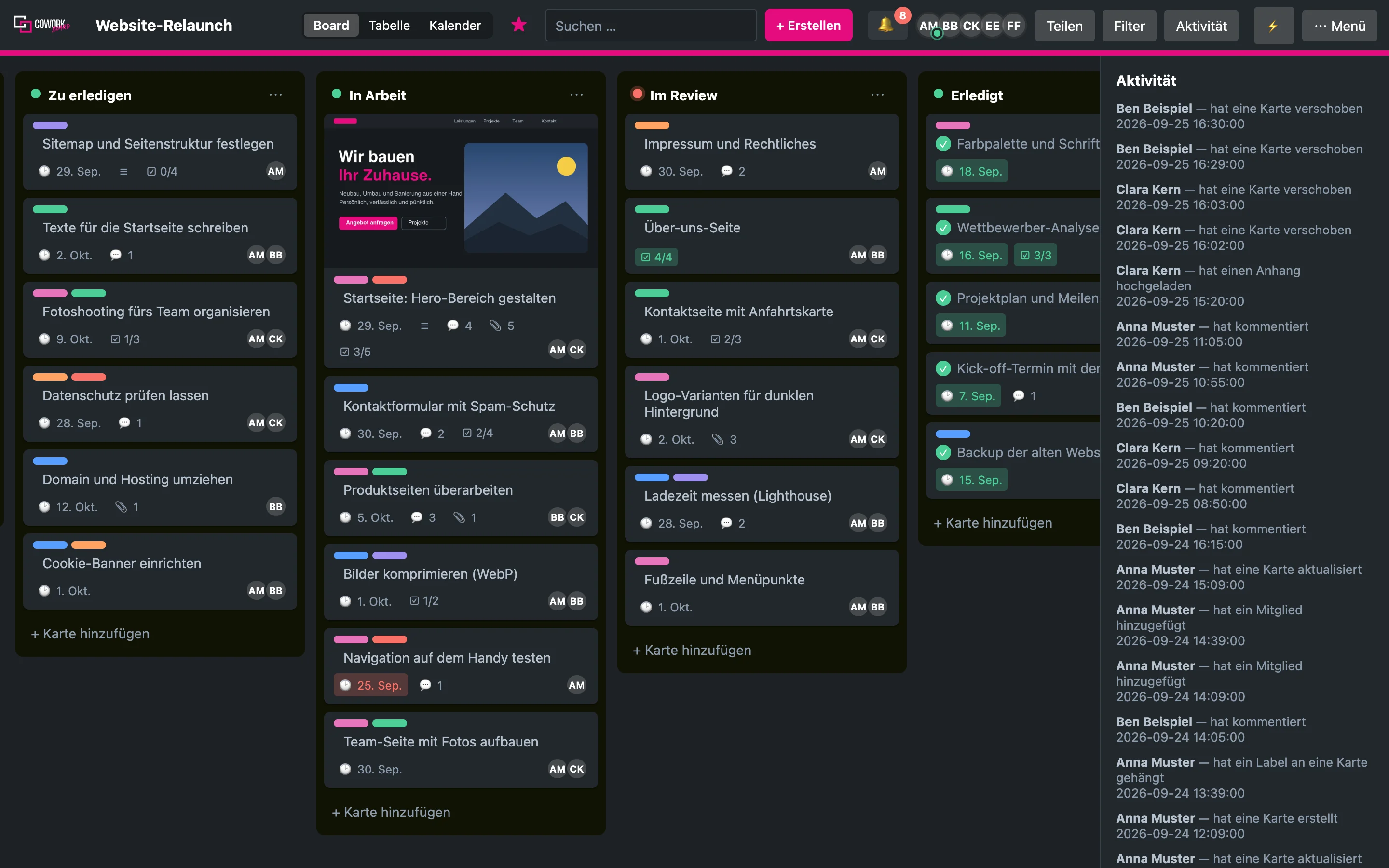
After signing in, you see all your team’s boards.
A red dot shows you where something new happened.
Search finds every card, even by its text.
In the video from 0:00.
02
Boards, lists, cards
A board is a project: lists side by side, cards inside them.
New task? Add card, type a title, done.
Once you start on it, drag the card to the right.
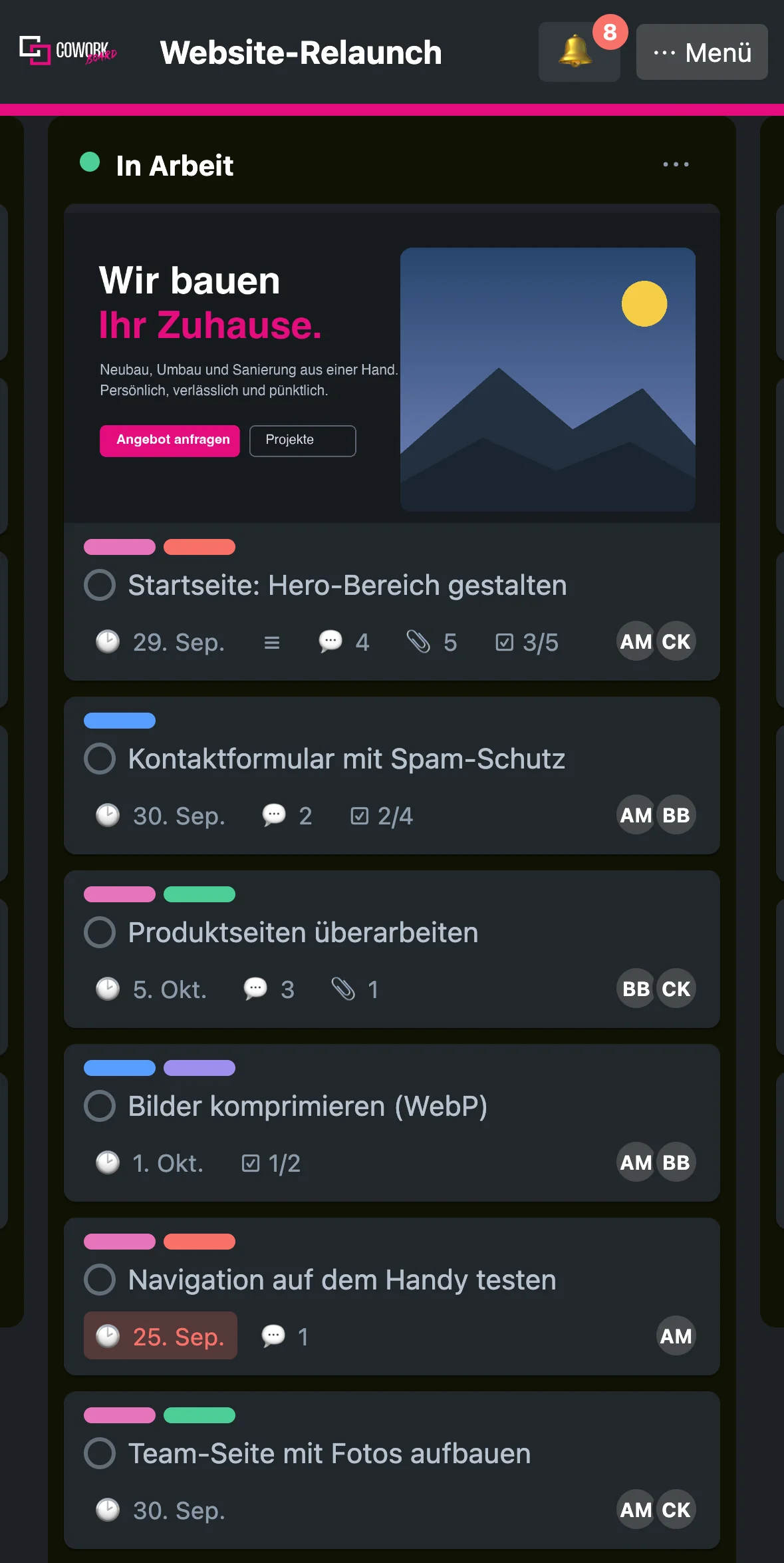
On the card you see labels, due date and assignees.
Done? One click on the circle checks the card off.
Need another column? Create a list.
In the video from 0:15.
03
The card in detail
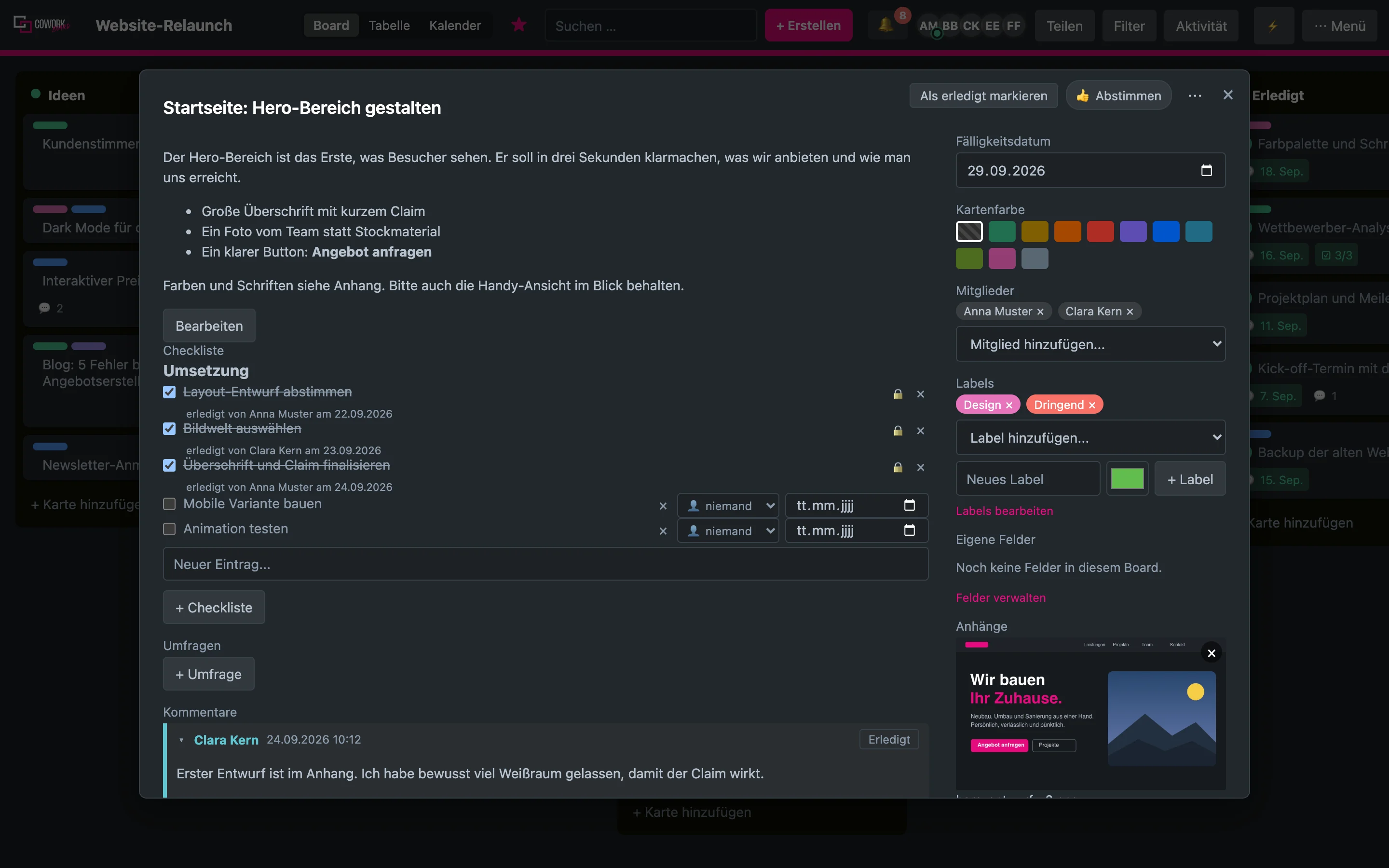
One click opens the card. Everything about a task lives here.
In the description you write with headings, lists and images.
With a due date, the card also shows up in the planner.
Assign people and labels, then everyone knows.
Check off steps in the checklist, progress shows on the board.
Attach files and links directly, up to fifty megabytes.
Discuss it in the comments. Bring in colleagues with @.
In the video from 0:40.
04
Views and filters
The table shows every card, a click on a column sorts it.
In the calendar, drag a card onto another day.
The filter hides what doesn’t concern you right now.
In the video from 1:09.
05
Working together
Via Share you invite colleagues, as a member or a viewer.
The bell shows you what happened on your cards.
The activity log shows who changed what and when.
On the go, jot it down in the inbox and sort it later.
In the video from 1:21.
06
Less manual work
The lightning bolt opens automation: when this happens, do that.
CoWorkboard creates recurring cards for you every morning.
Custom fields store order number, amount or priority.
With your own AI, you write and summarise text.
Claude can work right in your boards, with exactly your rights.
Everything else is in the guide, bottom left. Enjoy working as a team.
In the video from 1:37.
What your hosting needs and what CoWorkboard sends outside is on the technical-details page. The installation guide as text comes with the package; the full usage guide is inside CoWorkboard, bottom left in the footer.